In this article
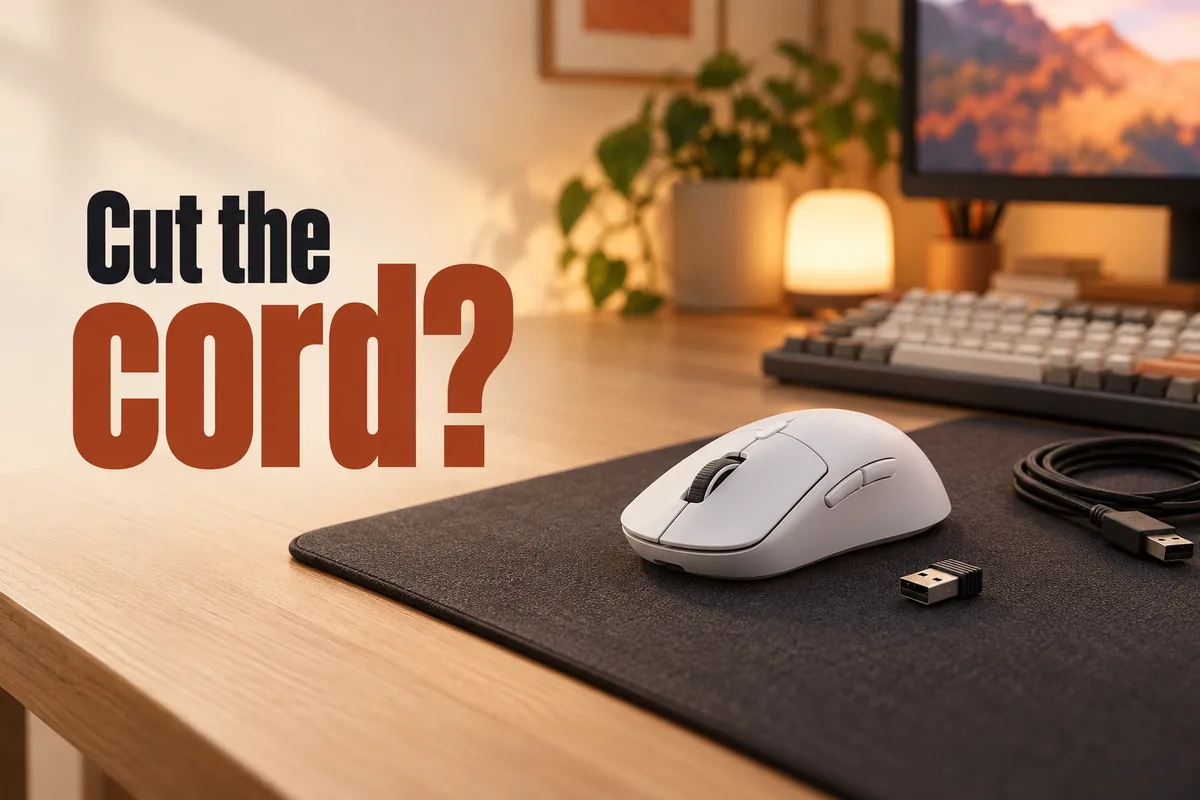
For most players, yes. A good wireless mouse that talks to the computer through its own USB dongle responds fast enough that the cable stops being a reason to put up with drag on the desk. What decides whether you enjoy it is less the word "wireless" and more a handful of ordinary things: how the shape sits in your hand, what powers it, how much it weighs, how many buttons you really use, and whether the first one out of the box behaves.
Anyone who has switched from a corded mouse knows the worry. You pull the cable out, plug in a small dongle, and wonder whether the next flick in a shooter will land a beat late, or whether the battery will quit in the middle of a match. Those fears made sense when wireless mice were slow and heavy. They are mostly out of date, but the decision is still easy to get wrong in other ways.
This guide walks through the questions that matter in the order most people run into them: speed, battery, fit, weight, buttons, click feel, and how much money is worth spending. Along the way you will see what buyers of nine different wireless gaming mice report, including the complaints, so you know what to check on whatever you choose.
Is a wireless mouse fast enough for gaming?
For casual and most competitive play, a mouse with a dedicated 2.4 GHz dongle is fast enough. These mice are built to report movement and clicks about once a millisecond. One compact model's listing claims a 1 ms response time. Treat that as the maker's figure, not a promise about your setup. Independent labs such as RTINGS measure click latency mouse by mouse, so you can look up the specific model you are considering instead of trusting the word "wireless" or "wired" on the box.
Buyers who switched are the best evidence of how this feels day to day. One buyer who had never owned a wireless mouse said they had been worried about lag and recharging and noticed neither. Another, who usually prefers wired mice for gaming, said a lightweight model finally convinced them to give up the cable. Several others describe the connection as stable through long sessions and say they cannot feel a difference from wired.
Should I use the dongle or Bluetooth?
Most gaming mice here offer the dongle, and a few add Bluetooth. The listings for two of them describe the same trade: the dongle for low-latency play, Bluetooth for longer battery life and for connecting to a laptop or tablet. One lists up to 155 hours on the dongle and up to 280 hours on Bluetooth; another lists up to 285 hours and up to 535 hours. For gaming, use the dongle. Keep Bluetooth for the couch, the laptop, and travel.
What does polling rate mean, and do I need 8,000 Hz?
Polling rate is how often the mouse reports its position to the computer. At 1,000 Hz that is once every millisecond. Two of the newest, most expensive mice here advertise 8,000 Hz, which is eight times as often. The extra reports are aimed at top competitive players on fast displays, and they come at a cost. One listing states up to 180 hours at 1,000 Hz and up to 45 hours at 8,000 Hz for the same mouse. If you are not chasing every millisecond, 1,000 Hz is a sensible default, and one buyer reports their battery lasting a good while at 2,000 Hz.
When does wireless go wrong?
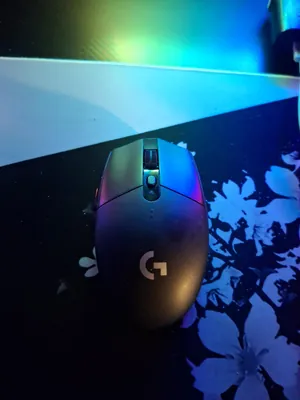
Problems buyers describe are mostly about the radio link or the surface, not raw speed. One buyer of a budget model said the cursor felt laggy over the wireless connection. A buyer with a mouse that has a patterned, multicolor pad said the cursor occasionally stalled until they switched to a plain pad. A couple of buyers reported brief dropouts, one with the dongle about a yard away and another at roughly 10 feet. None of these is a reason to avoid wireless. They are reasons to set it up well, which is covered at the end.
How do you stop thinking about the battery?
There are two designs, and the right one depends on how you hate maintenance. A mouse with a built-in rechargeable battery is usually lighter and never needs you to buy anything, but you plug it in when it runs low. A mouse powered by a single AA battery adds weight and makes you keep a spare, but a dead battery is a ten-second fix, and the listed hours are very long.
Listed battery life is the maker's figure under specific settings, so lighting, polling rate, and sleep behavior all change it. One mouse in this group lists up to 35 hours with its default lighting on, while several AA models list well over 200 hours. Buyers' own numbers vary just as much. One reports not charging a new mouse for more than a week of casual use; another with a budget rechargeable says it needs a charge about weekly.
A few habits make the whole thing disappear. Top up at the end of the day instead of waiting for a warning. Keep a spare AA or a pair of rechargeables near the desk if your mouse takes one. Some buyers recommend decent batteries over the cheapest ones, saying the lowest-cost cells drain far faster. And if your mouse can work plugged in, a cable that is long enough means a low battery never ends a session. One buyer notes the cable that came with their mouse is long enough to keep playing while it charges.
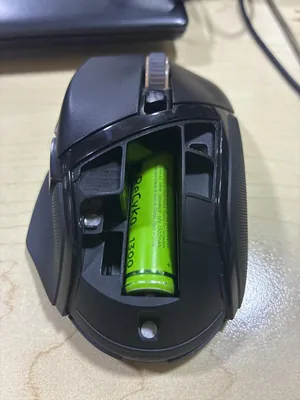
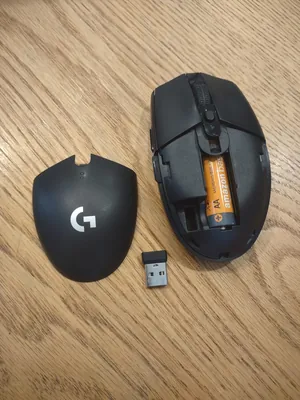
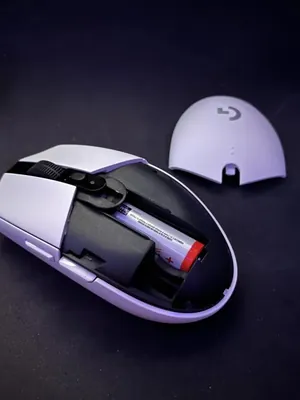
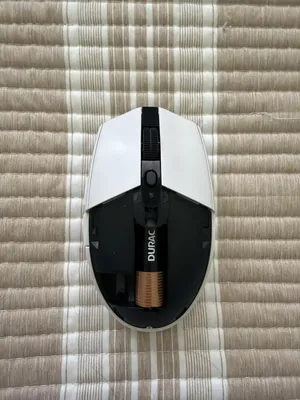
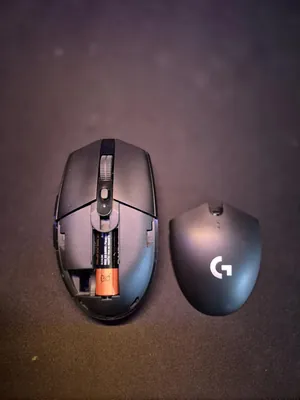
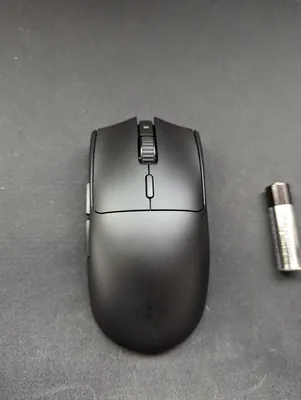
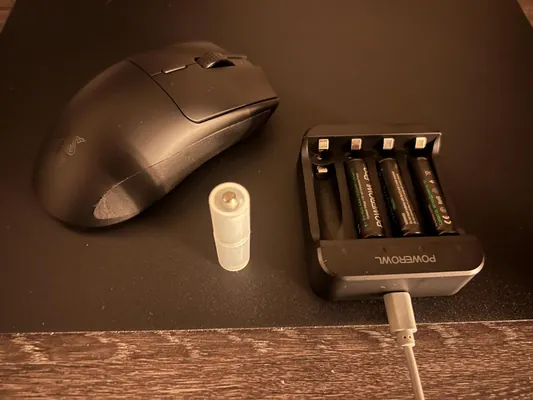
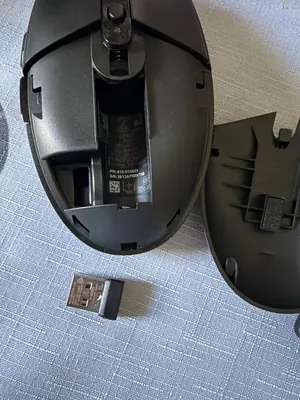
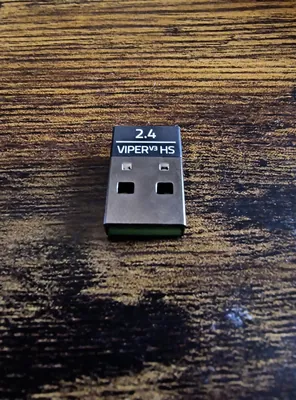
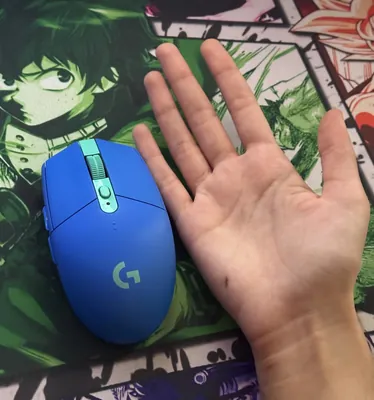
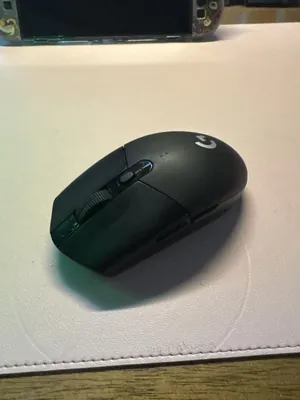
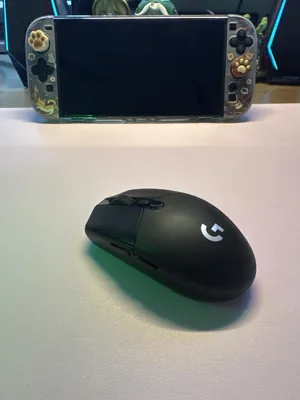
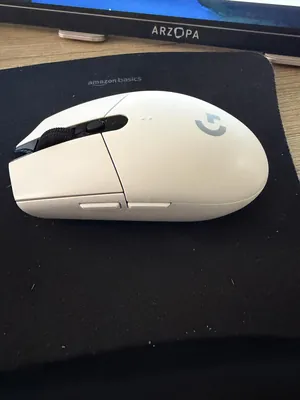
If you want the simplest version of the AA approach, a compact mouse that holds one battery and stores its dongle in the shell is hard to beat on convenience. Buyers of this one mention years of daily use. They also point out limits worth knowing: a buyer notes it has no wired or Bluetooth mode, the clicks are loud enough that one buyer's friends could hear them on voice chat, and its small shape suits small to medium hands best, and some larger-handed buyers found it a bit small, though one with large hands found it comfortable.
Will it actually fit your hand?
Fit matters more than any number on a spec sheet. Canada's occupational health and safety agency advises choosing a mouse that matches your hand and keeps your wrist in a neutral position, trying several if you can, and holding it with a relaxed hand. If you find yourself squeezing it, the shape or size is probably wrong. The same guidance says to move the mouse from the elbow rather than flexing the wrist. It also suggests keeping the mouse close to the keyboard so you are not reaching out to use it.
How do I tell my grip style?
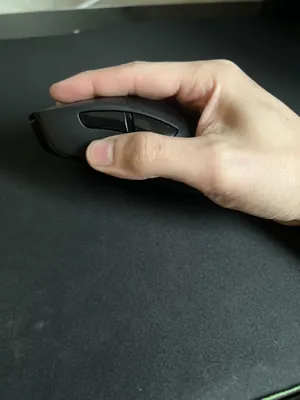
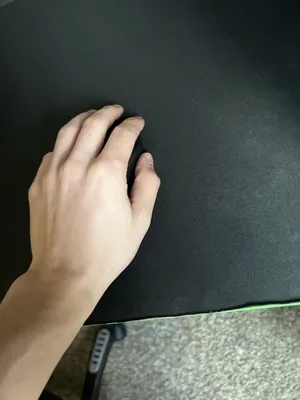
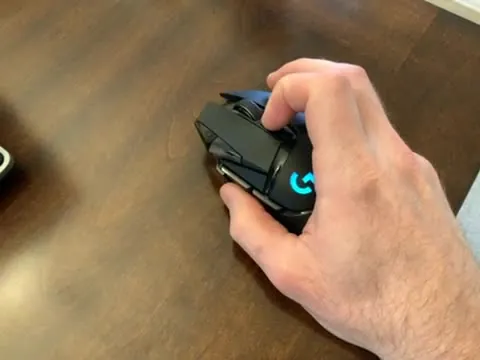
Notice where your hand touches the mouse during a game. If your whole palm rests on the shell, that is a palm grip, and a longer, taller mouse tends to feel supportive. If your palm touches only the back of the mouse while your fingers arch over the buttons, that is a claw grip, which often feels better on a mid-sized shape. If only your fingertips touch it, that is a fingertip grip, and a small, light mouse is easier to control. Makers publish hand-length charts, but their cutoffs for small, medium, and large disagree, so treat any chart as a rough guide and read what buyers with similar hands say.
Does handedness matter?
Yes. Many gaming mice are shaped for a right hand, with a thumb groove and buttons on the left side. One buyer notes that a mid-weight model is clearly designed for right-handed use. Symmetrical shapes look neutral, but one left-handed buyer found that the side buttons still got in the way on a mouse sold for both hands. If you use your left hand, check where the buttons sit rather than assuming the shape solves it.
Two right-handed shapes show how much hand size changes the answer. One mid-weight model gets praise from buyers with medium and large hands who play in a palm or claw grip, though one found it less big than expected. Another, a larger, heavier shape, is described by buyers as a good fit for medium to large hands, with one medium-handed buyer saying they shift their hold slightly up the shell to reach the buttons.
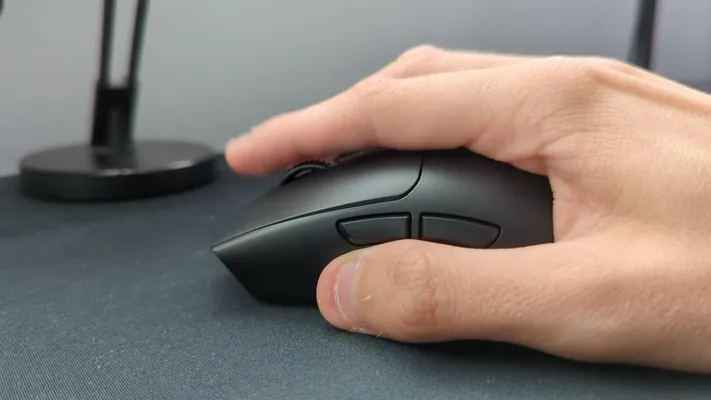
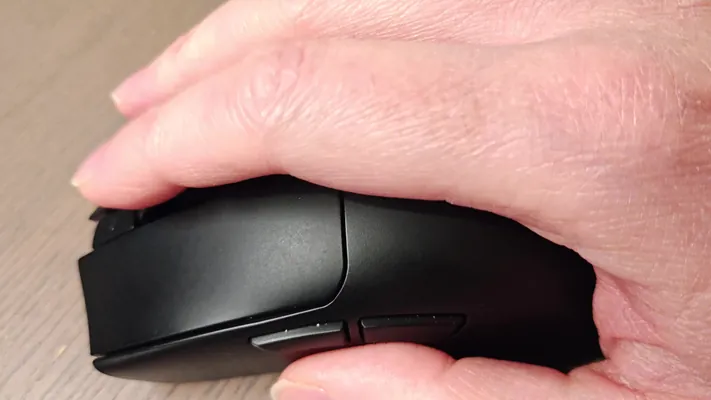


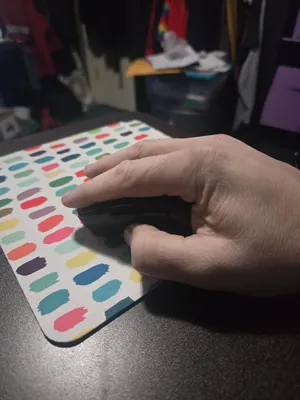
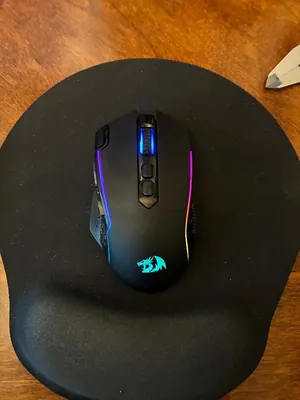
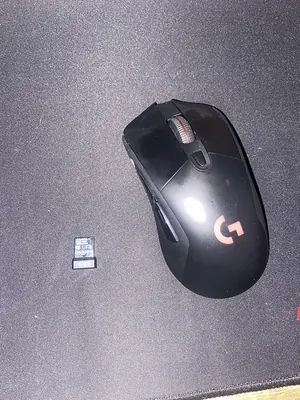
Buyers of this mouse mention a few downsides: it charges over an older micro-USB cable, some noticed the glide feet wearing faster than expected, and two said the scroll wheel failed. The listing states up to 35 hours with default lighting and 95 grams before the optional weight.
This one is heavier and bigger. Buyers like the fit for larger hands and the scroll wheel, and several complain that it still charges over micro-USB. One said it misread its battery level during the first week until they let it drain once, so it is worth letting a new mouse settle before judging it. Another reported that the mouse only remembered their settings while the maker's app was open, which is worth checking before you rely on custom buttons.
If any hand or wrist discomfort lingers or comes with numbness or tingling, a clinician is the right person to ask. A different mouse is not a medical answer.
Should you buy a light mouse or a heavy one?
Weight is a preference, not a ranking. A light mouse is easier to flick and less tiring over long sessions, and buyers of light models repeatedly say that their hand stays fresher. A heavier mouse feels steadier and some players like the sense of resistance. The listings give numbers to compare: about 49 grams for the lightest mouse here, 82 grams with its battery for a mid-weight model, and 95 grams for a heavier one before its optional weight.
Weight also follows from the power source. A replaceable AA battery adds weight, and one buyer notes that a lighter lithium cell would cut it further at higher cost. One buyer of the lightest shell said it felt like a toy at first, and another, coming from a heavier mouse, said it felt strange at first. A handful of buyers say the reverse about other light mice, wishing for a little more heft. If you are not sure, a mouse that includes grip tape lets you add texture without changing shape.
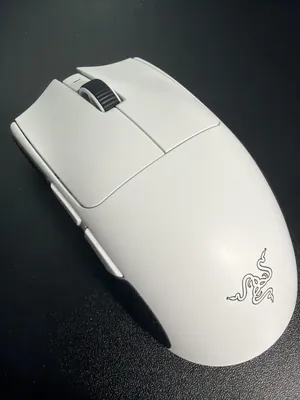
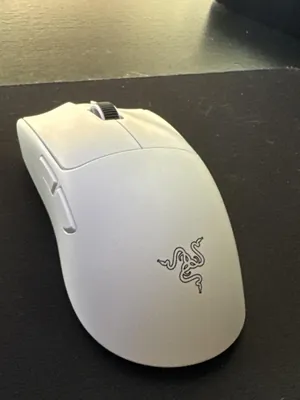
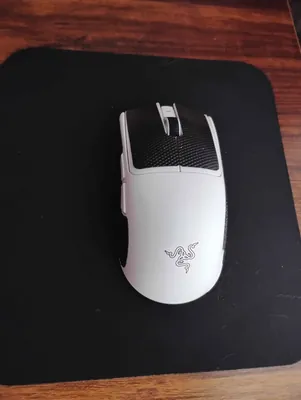
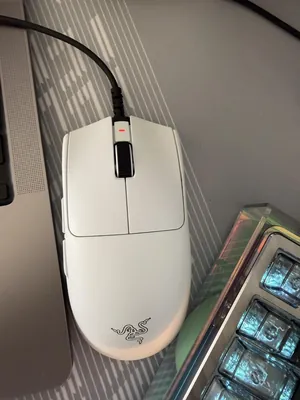
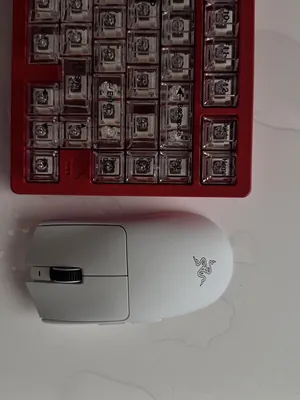
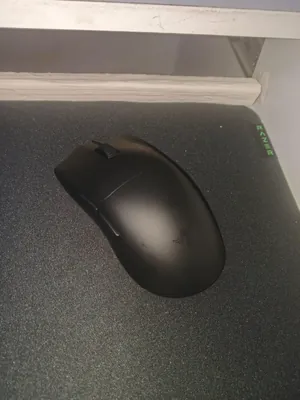

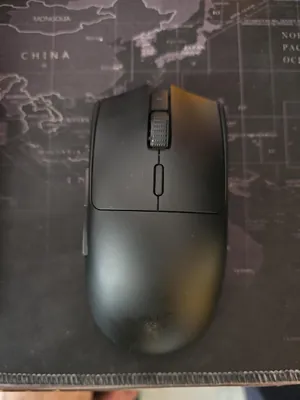
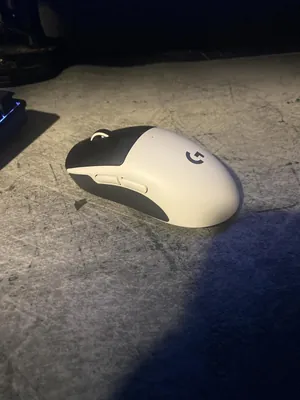
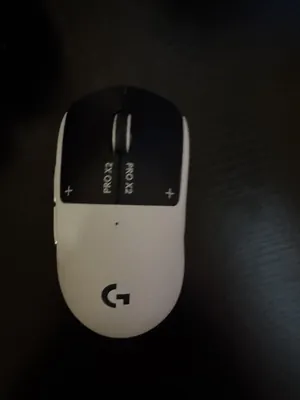
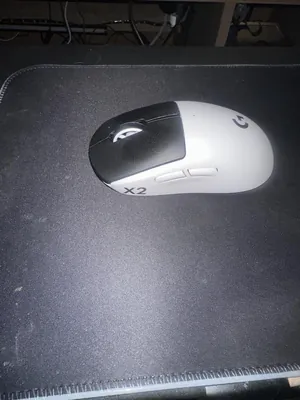
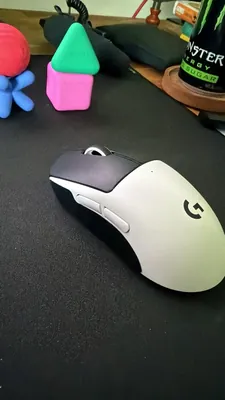
The listing states up to 180 hours of battery at 1,000 Hz and up to 45 hours at 8,000 Hz, and says grip tape and the dongle are in the box. Buyers praise the weight, the clicks, and the battery, and one with a medium hand found the size comfortable. The common complaint is price. Several buyers also reported a rough unit: scuffed glide feet on a copy sold as new, a gap in the shell, or a switch that sounded off.
This mouse lists 82 grams with its battery, up to 280 hours on one AA, and a button on top to cycle through five sensitivity levels. Buyers report stable connections and a light feel, with some calling it a little large for small hands. A few reported a squeaky scroll wheel, and one a missing dongle, and one buyer got a replacement through support. It has no Bluetooth mode, according to a buyer, so it is a dongle-only choice.
How many buttons do you actually need?
Most shooters and general players get by with two side buttons and a sensitivity button. Strategy games, online role-playing games, and work macros can use many more, and that is where larger button counts earn their space. The trade is accidental presses. Buyers of mice with many side buttons, a nine-control mouse, and a compact two-button model all mention hitting a side button by accident, and one says it happens when lifting the mouse.
Button remapping usually needs the maker's app, and that is where some buyers run into trouble. One listing says full customization is available on Windows, while macOS supports only core functions and onboard settings. A few buyers of one mouse had trouble getting the app to detect it or to sign in. Buyers of two other models said the app has to stay running for custom buttons to work. Look for onboard memory, which keeps your settings on the mouse itself.
Magnetic side plates mean one mouse can use 12 thumb buttons for a role-playing game and switch to two when you want to play something fast without stray presses. Buyers say the plates click on firmly and sit flush. They also describe a learning curve: one found the numbering order on the 12-button plate confusing until they remapped it, one with longer nails said the small buttons were hard to press, and one said the extra weight of the battery took getting used to. A buyer also described a high-pitched sound from the left click.
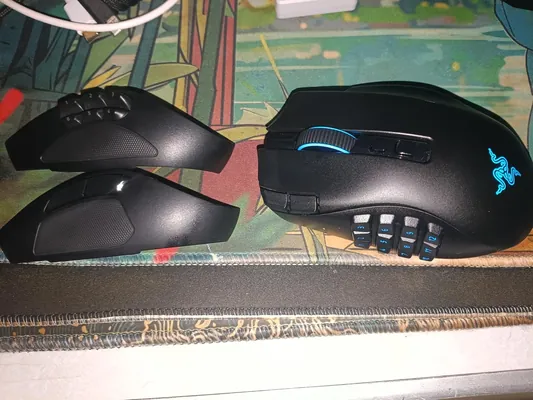
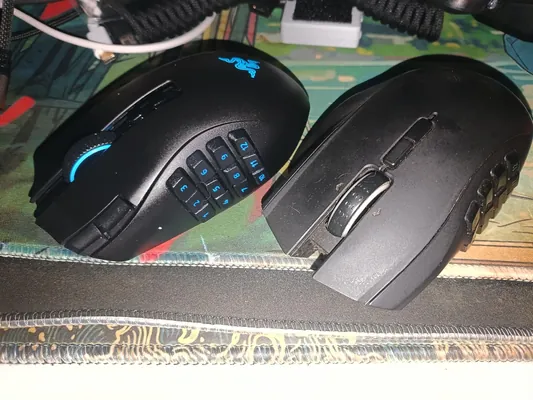
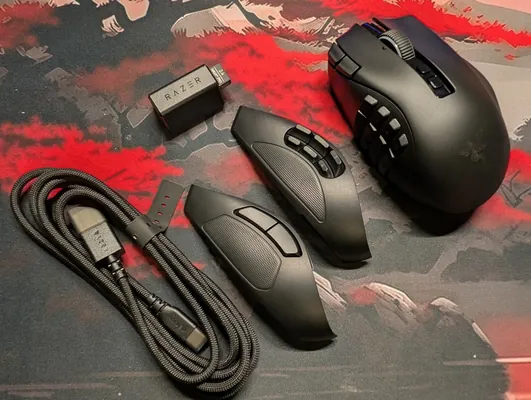
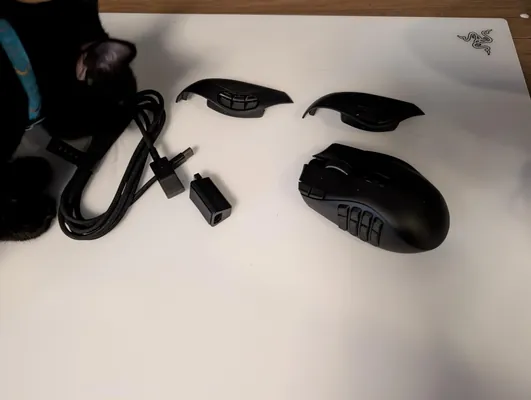
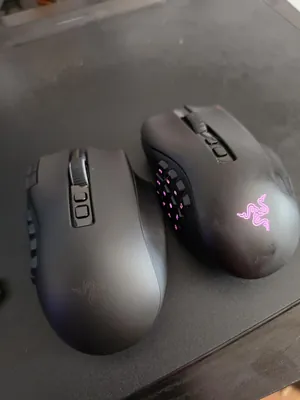
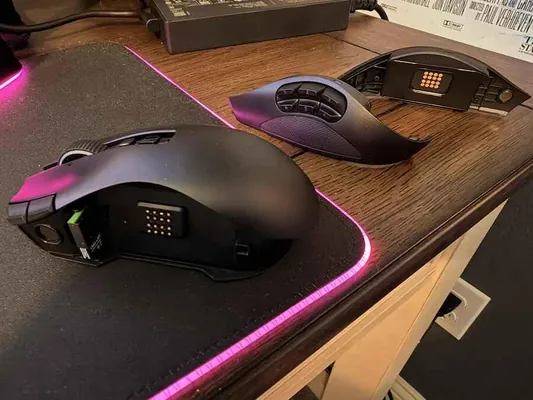
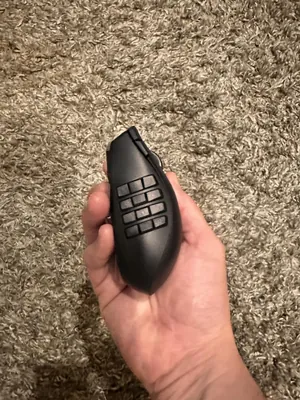
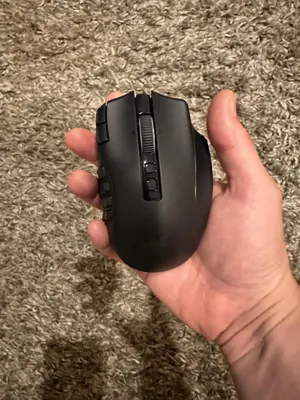
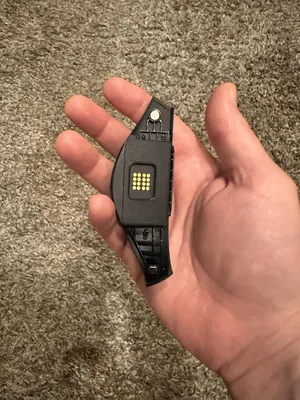
The listing describes nine programmable controls, dongle and Bluetooth connections, and up to 285 hours of battery, and buyers say it takes a single AA. Buyers like the shape for larger hands and the extra thumb button. The recurring complaints are a noisy scroll wheel, and one reported the wheel failing after a few months, while another said the whole mouse stopped working after two months. One reported it being slow to wake from sleep, and one found the battery needed replacing about every week or two.
Is a quieter, faster click worth paying for?
If you play late at night, share a room, or chat on voice while you play, click noise matters. Some mice are loud enough that teammates hear them, and some buyers mention high-pitched click sounds that bother them. A few newer designs replace the physical click with magnetic sensing and a small vibration, so the button feels like a click without much sound, and lets you adjust how far you press before it registers.
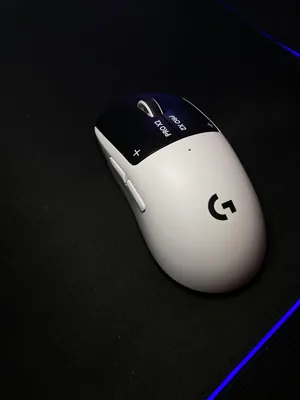
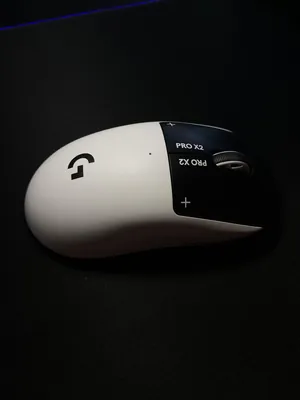
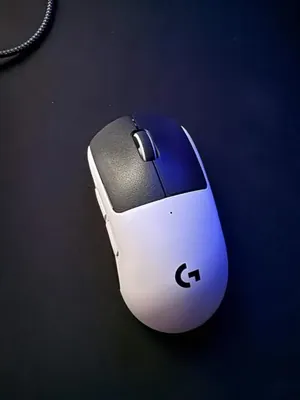
The listing describes a magnetic haptic switch system with adjustable actuation, up to 60 to 90 hours of battery, and 8,000 Hz polling. Buyers describe it as quiet, light, and fast, and one who has fingertip sensitivity said the lowest setting felt easier to click than a typical mouse. They also point out the cost: one said the haptic settings affect battery life, and one buyer found scuff marks out of the box that wiped off with an alcohol wipe, and another disliked the stock glide feet. At about $180 it is one of the most expensive mice in this group.

What does spending more actually buy?
Across this group prices run from about $35 to about $180, and the extra money goes toward weight, polling rate, sensors, and click mechanisms that most players cannot feel. Reading what buyers say, even the cheaper mice earn happy first-time buyers, and the expensive ones still collect complaints about quality control. Spending more tends to buy a lighter shell, faster polling, a longer battery, and a more refined click. It does not buy a fit you cannot test.
Budget models make different trade-offs. Buyers of the cheapest ones mention a stiff or gritty scroll wheel, battery life measured in weeks, and software that is clumsier to install. They also often say it was a clear step up from a basic office mouse. Support experiences differ, and two buyers of the budget model below said the maker sent a replacement or fixed a problem quickly.
The listing describes a 2.4 GHz receiver, five sensitivity levels, eight programmable buttons, and up to 45 hours in eco mode. Buyers call it smooth and good value, and several bought it for a son or a first gaming setup. The complaints are a battery that needs charging about weekly for some, one unit shipped without its receiver, glide feet that came loose within a week for one buyer, a control-panel window that appears at startup, and one who found the wireless connection laggy.

How do you set up any wireless mouse so it feels better?
Where should the dongle go?
Plug it in close to the mouse. A short USB extension that brings the dongle onto the desk helps if your PC sits under it or behind it. One buyer recommends a USB 2.0 port for lower interference, and another suggests a cable extension for the receiver. If your laptop only has USB-C, you will need an adapter, as one buyer who travels with a compact mouse points out. Some mice store the dongle inside the shell, which keeps it from getting lost.
What surface works best?
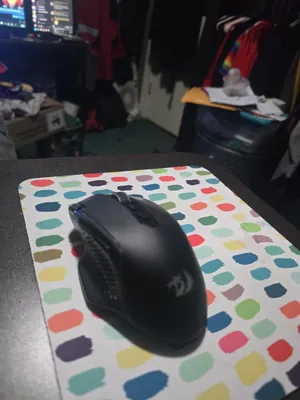
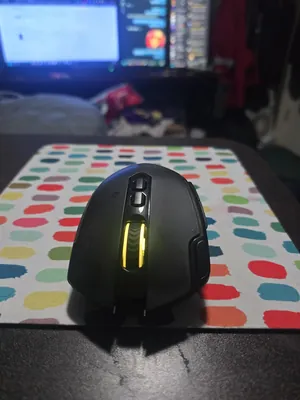
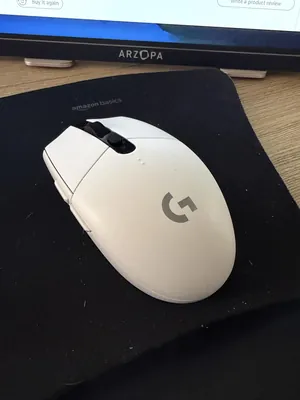
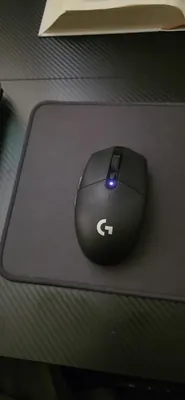
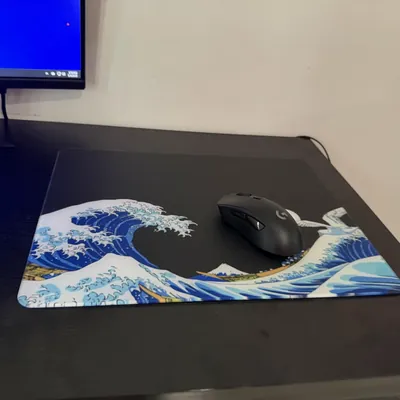
A plain, fairly flat mouse pad is the safest start. One buyer found the cursor stalling on a mat with large color changes and fixed it by switching to a solid-color pad. Some sensors struggle on glass or glossy surfaces, and one listing specifically claims reliable tracking on glass, which is worth checking if your desk is glass. Glide feet wear over time, and a few buyers noted theirs wore faster than expected, so check whether replacements exist before you buy.

Which settings should I change first?
Start with a moderate sensitivity and adjust from there. One buyer settled on 1,600 DPI as the sweet spot for their hand and game. One listing suggests turning off the Windows "Enhance pointer precision" option for more consistent aim. Save your settings to the mouse if it has onboard memory, so they follow it to another computer.
What should I check when the box arrives?
Test the mouse, the dongle, and the cable the day it arrives, while returning it is easy. Buyers of several models in this group reported items that looked used even though they were sold as new, with scuffed glide feet, a dusty shell, or a box that had been opened. A few received a mouse without its dongle or cable, and one suspected a counterfeit after noticing flat glide feet and a polling rate that fell short in a test. Buy from a seller you trust, and keep the packaging until you are sure.
Finally, look after the hand using it. Keep the mouse close, move from the elbow, and take breaks. A wireless mouse removes the cable, not the strain of a long session.
Pick the shape that suits your hand first, then the battery and weight you can live with, then the buttons you will really use. Everything else, including speed, is usually good enough on a well-made wireless mouse, and the rest of the money is a matter of taste.