In this article
The best mechanical keyboard for typing is the one whose switch feel, noise level, and size suit how and where you type. Pick the switch type first (smooth linear, tactile bump, or loud clicky), then the layout that leaves room for your mouse and a neutral wrist position, then wireless or wired. Lighting, knobs, and keycap art come last. This guide walks through those choices, with what buyers report about sound and build, and what to check when the keyboard arrives.
Mechanical keyboards look like a hobby from the outside, and buyers often describe the first week as a surprise: the keys are taller, you have to press them properly, and the sound is part of the experience. Knowing what to expect makes it easier to choose one you will still like in six months.
Is a mechanical keyboard really better for typing?
Not automatically. A mechanical keyboard puts an individual switch under each key, instead of a rubber sheet, which changes how a press feels and sounds, and many boards let you swap switches and keycaps. What it does not do is make you faster or more accurate by itself. Buyers describe feel and sound far more often than speed.
Expect an adjustment period. One buyer coming from a laptop said you actually have to press the keys instead of tapping them, and another who needed real tactile and audible feedback to type well said it let them type again. Both are worth knowing before you buy.
Linear, tactile, or clicky: which switch feels right?
The switch decides most of what you will notice. A switch guide from a keyboard enthusiast site describes three families. Linear switches feel smooth from top to bottom with no bump and no click. Tactile switches have a small bump at the point the key registers, and are quiet with no click. Clicky switches add a loud, clear click on top of the bump, which can distract coworkers or family.
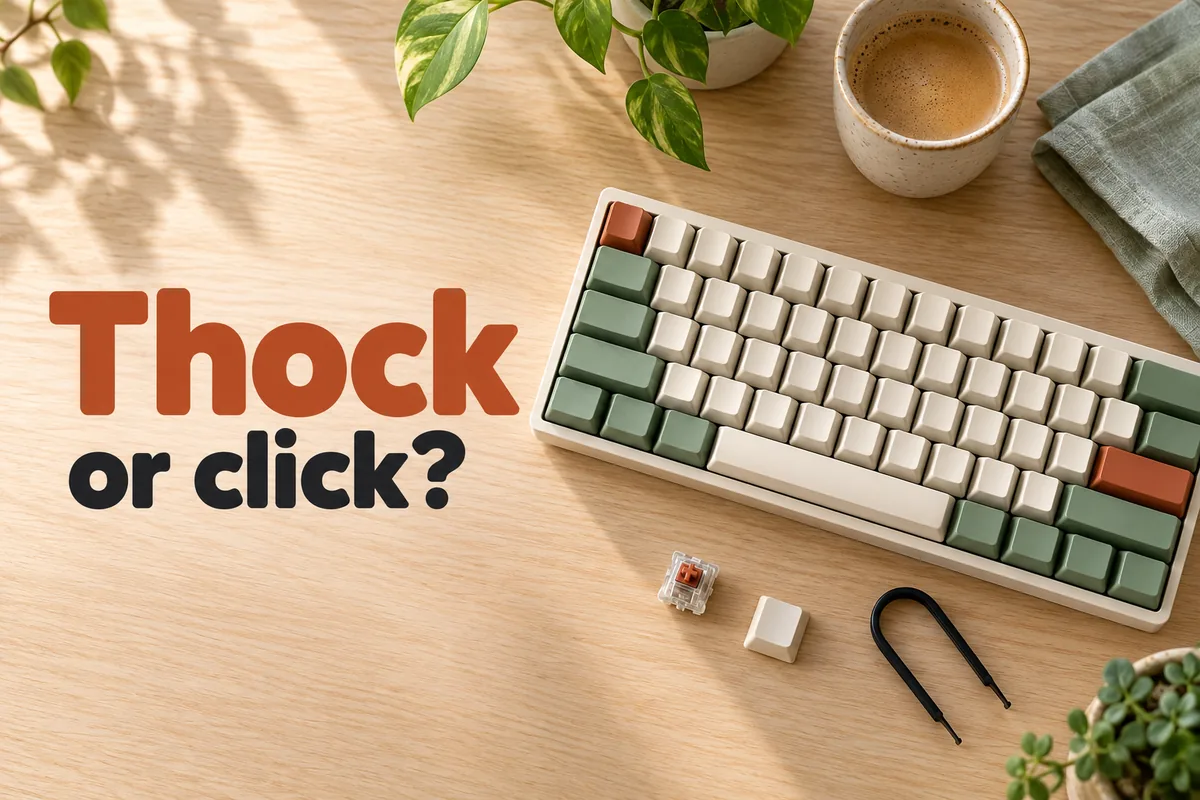
Buyers' notes follow that pattern, with some twists. One who wanted a classic clicky feel said their tactile board was not truly clicky and called it close but no cigar, another said a tactile model was noisier than expected for a quiet office, and one buyer said the soft switches on their board keep their wife from being annoyed by the noise. “Creamy” or “thocky” is how people describe a deeper, softer sound, which listings attribute to sound-absorbing foam, gasket mounting, and pre-lubricated switches.
What does hot-swappable mean, and do you need it?
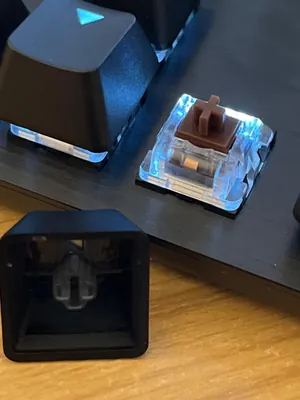
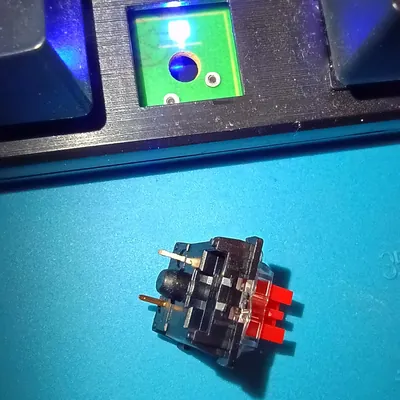
A hot-swap keyboard lets you pull out switches and push in new ones without soldering. It is useful if you are not sure which feel you prefer: one buyer replaced the factory switches with tactile ones, and another swapped out red switches they found too clicky. The catch is compatibility. One buyer said their board's switches could only be swapped between a few brands, and listings usually say whether three-pin or five-pin switches fit.
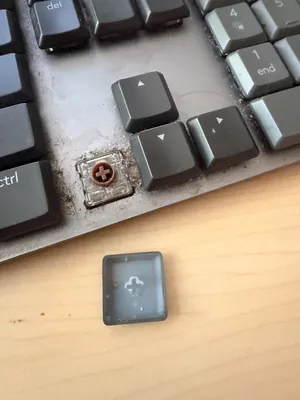
Which size should you choose: full-size, 96 percent, or 75 percent?
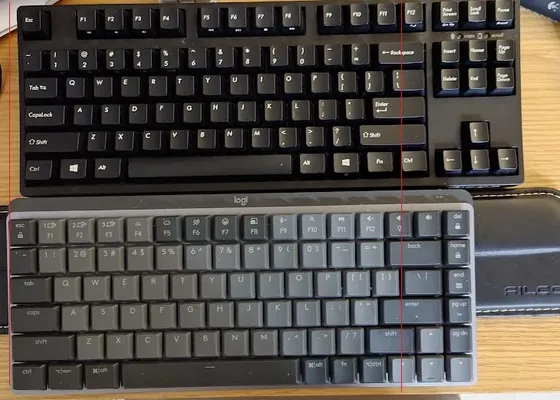
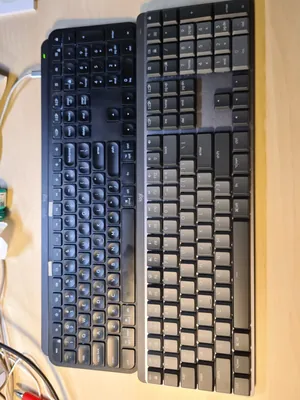
Size affects desk space and posture. A workplace safety guide from Canada's occupational health agency says to center the keyboard directly in front of you with the shoulders relaxed and the elbows close to the body, and notes that a shorter keyboard, about 14 inches long, reduces overreaching and leaves more room for the mouse. A compact layout can help, but only if you do not lose keys you use every day.
- Full-size keeps the number pad and every key. It is the safest choice if you enter numbers all day, and the widest.
- 96 to 99 percent squeezes the number pad against the main keys. You keep it, with less width, but the keys near the arrows move, and buyers who are used to full-size sometimes hit the wrong key at first.
- 75 percent drops the number pad and keeps the function row and arrow keys. It is the most compact of these and a good match if you rarely use a number pad.
Spacing matters too. One buyer said a full-size board's keys are spaced slightly wider than most keyboards, which felt awkward after years on a standard layout, and another found a 99-key board too small for their setup. Try to compare a layout against the one you use now, especially around the right shift key and arrows.
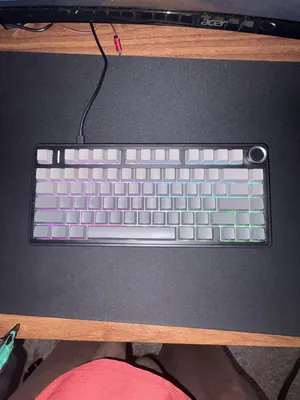
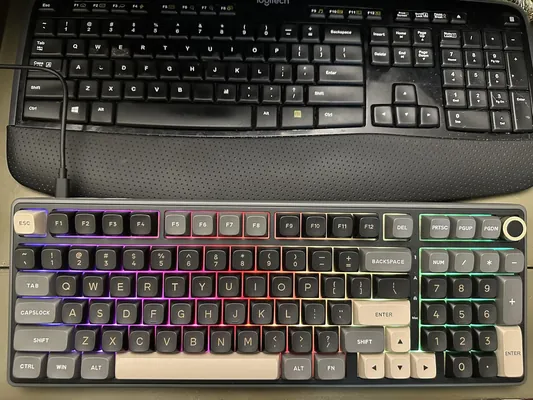
Buyers loved the weight and the soft, deep sound, with several saying it feels far pricier than it is, and the three connection modes (Bluetooth, 2.4 GHz wireless, or cable) worked for work and gaming. A few said it is too clacky for their taste, one saw a slight Bluetooth delay, one said the battery drains faster with the lights on, and one had a key fail after about a year. One buyer said the listing did not make clear that the keycaps shown were a gradient set.
Buyers praised the feel, the sound, and the battery, and several bought a second one for work. One who reviewed the layout in detail called the 99 percent arrangement a set of interesting choices that take adjusting to, and another said it was too small for their setup. One buyer learning to touch-type said the F and J keys lacked the small bumps that mark the home row, and another said their computer did not recognize the board.
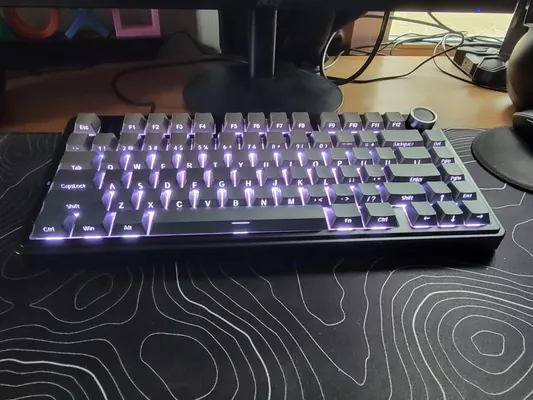
Buyers described a quiet, creamy sound, a heavy and stable feel, and a knob that is handy for volume. One who types on a 100 percent board warned that the right shift and up arrow sit differently, another found the legends hard to read in dim light, and a couple reported poor quality: one said the board stopped working after two months, and another said the knob and keys were not as creamy as a previous model. It connects by cable only.
It has only about 90 ratings and eight comments were collected, so there is little to go on. Buyers called it solid, heavy, and satisfying, one liked the battery, one said it took a few upgrades to get it just right, and one said the slightly wider key spacing is awkward if you are used to a standard layout.
How should a keyboard sit so your wrists stay comfortable?
Keyboard height matters as much as the keyboard. The same Canadian occupational health guide suggests elbows at about 90 degrees, forearms level with the floor, and wrists straight and in line with the forearms instead of bent up or down. It also says not to rest your wrists on the desk, and to use a wrist rest only if you need one and use it appropriately.
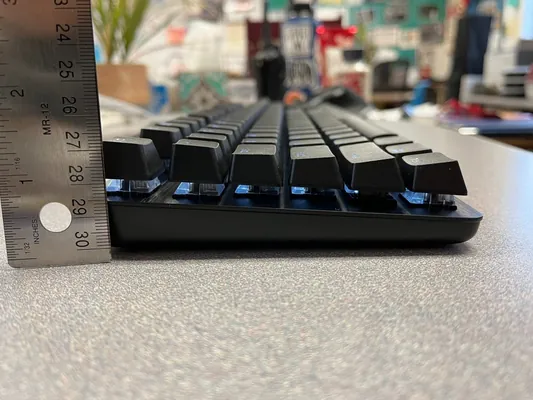
Mechanical keys sit higher than laptop keys, which some buyers noticed. One said the keys on a wireless board are mounted high enough that it feels like stepping over something, and another found the keys too high after switching from a flat board. Low-profile switches are one way to keep the height down.
Buyers who like it said the tactile feel is satisfying without being obscenely loud and that it pairs with several computers. Others said it is noisier than expected, wobbly, or pricey. Several buyers said their box arrived open or the keyboard looked used, one said the space bar's keycap does not use a standard stem, and one reported plastic around the charging port softening after a month. Check yours as soon as it arrives.
Wired or wireless: which suits you?
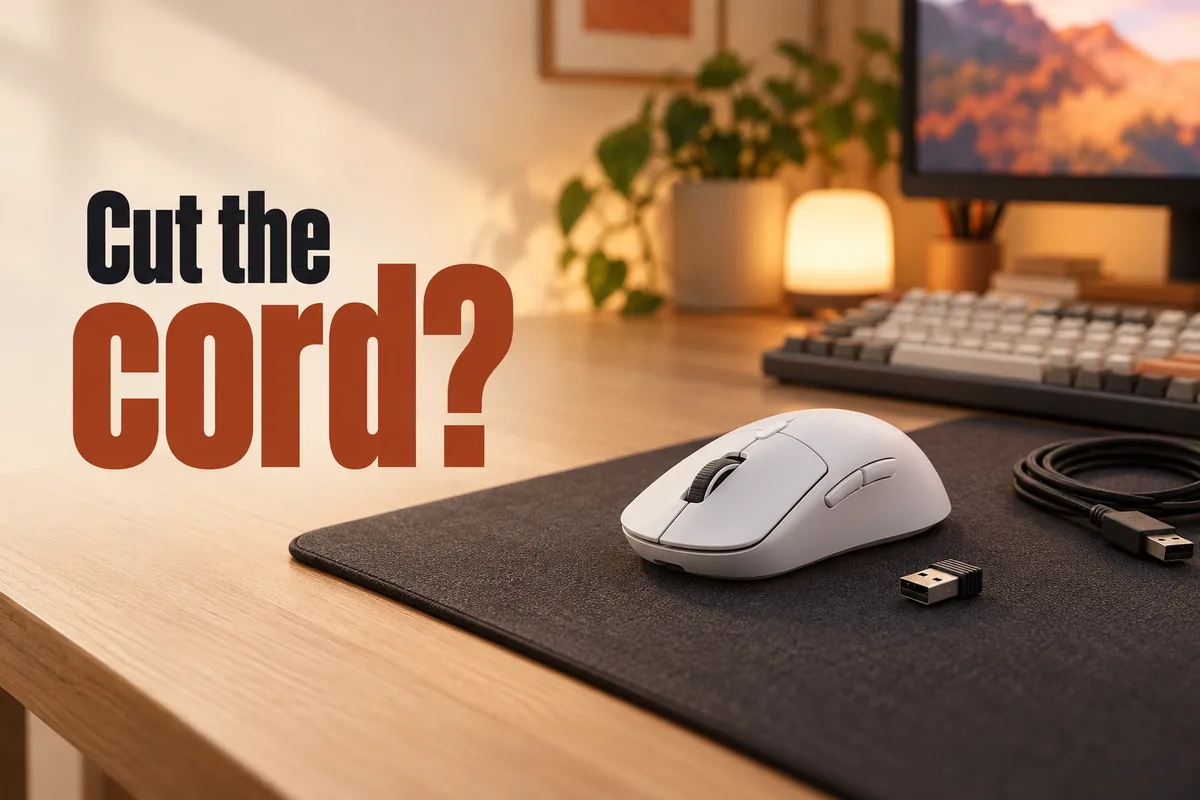
Wired boards just work and never need charging. Wireless boards with Bluetooth, 2.4 GHz, and cable modes let you switch between a laptop and a desktop, and listings advertise battery lives from days to months, with lighting being the big drain. Buyers noted that backlighting drains the battery quickly, one saw a slight Bluetooth lag, and one said the 2.4 GHz dongle needs a place to live, because it is easy to lose.
If you game on a console, check compatibility first. One buyer said a compact board worked well with a console after some pairing steps, so make sure your device is supported before you buy. If a battery or charging port feels hot, softens, or swells, stop using it and contact the seller.
Do keycap legends and backlighting matter?
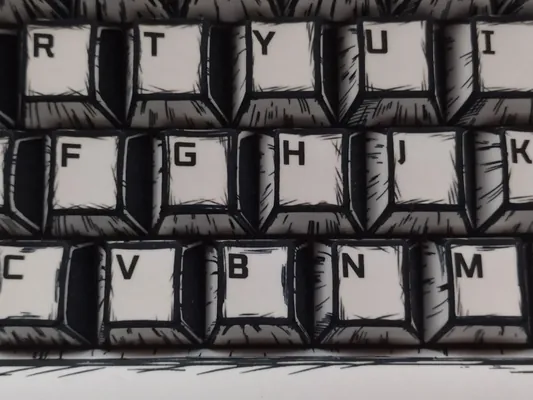
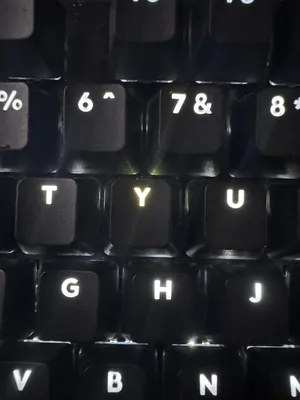
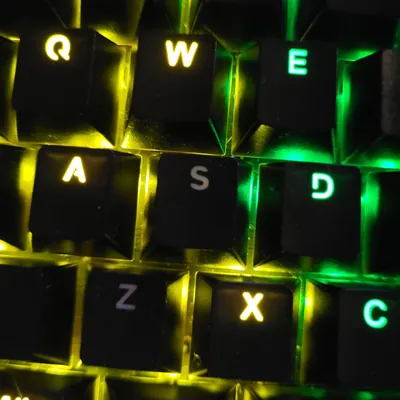
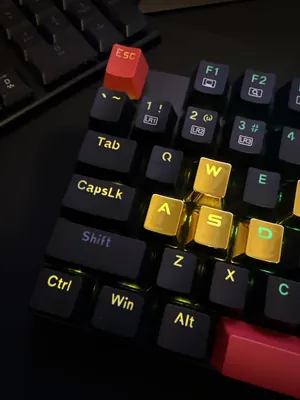
Legends are the letters on the keys. Printing them on the side of the keycap looks clean and lets light shine through, but one buyer who worried about letters printed on the front of the keys liked the change in the end, and another found the letters hard to read in dim light. Backlighting is nice at night, but the lights are also where cheaper boards tend to fail. Buyers reported single LEDs dying, backlights turning yellow, and a few keys losing their light within months.
Is a cheaper mechanical keyboard good enough?
Prices in this group run from about $28 to about $150. A low price can be fine for a first mechanical keyboard, but quality control is where it shows, and buyers reported keys that stopped working within weeks or months, dead LEDs, and a USB connection that sometimes puts the keyboard to sleep.
Buyers called it a good value, with a satisfying sound that is not too loud, and some used it for years without problems, though one said the red switches felt spongy. Others reported single LEDs dying, individual keys stopping, and USB hiccups, and one said support did not reply. It comes with a 24-month warranty, according to the listing.
Buyers liked the weight, the white lighting, and the quiet-ish clicks, and several said it was their first mechanical keyboard. Others said it is not truly clicky, two found the backlight turned yellow, one said a key died after four weeks, one noticed the cable's wrapping fraying after about six months, and one said the function keys are not labeled. A Mac user said it is not the best fit for Mac.
What should you check when it arrives?
A keyboard that arrives looking used is a frequent surprise in this group, along with keys and lights that fail early. A short test on day one saves a return later.
- Check that the seal and packaging are intact and that nothing looks used, with no hair, smudges, or missing accessories.
- Type every key, including the arrows and number pad, and try both Bluetooth and cable if the board offers both.
- Turn on the backlight and look for a dead or mismatched LED.
- Test the keycap puller and check that the space bar and other long keys feel stable.
- Take a few photos of the box and keyboard, and keep the receipt for the return window and the warranty.
If a board feels right under your hands and sounds right in the room you use it in, it is the right one. Everything else is a bonus.